
 Stream 1House.tv
Live streams daily
Sessions run around the clock. Drop in, ask questions, get feedback in real time.
Watch experts stream what they do best. Learn stocks, AI, crypto, fitness, cooking, and more … live.
To Be Determined, Las Vegas, NV
23 creators live
3,789 members watching
The platform
Learn in real time. Ask questions. Get feedback. Then rewatch it all whenever you want.
Sessions run around the clock. Drop in, ask questions, get feedback in real time.
Private spaces where creators share trade ideas, mentorship and direct guidance through the mobile app.
Every session archived. Binge, watch, and learn new skillsets on your own schedule.
Download the app and follow your favorite creators. Get pinged the second they hit the stream.
Mobile
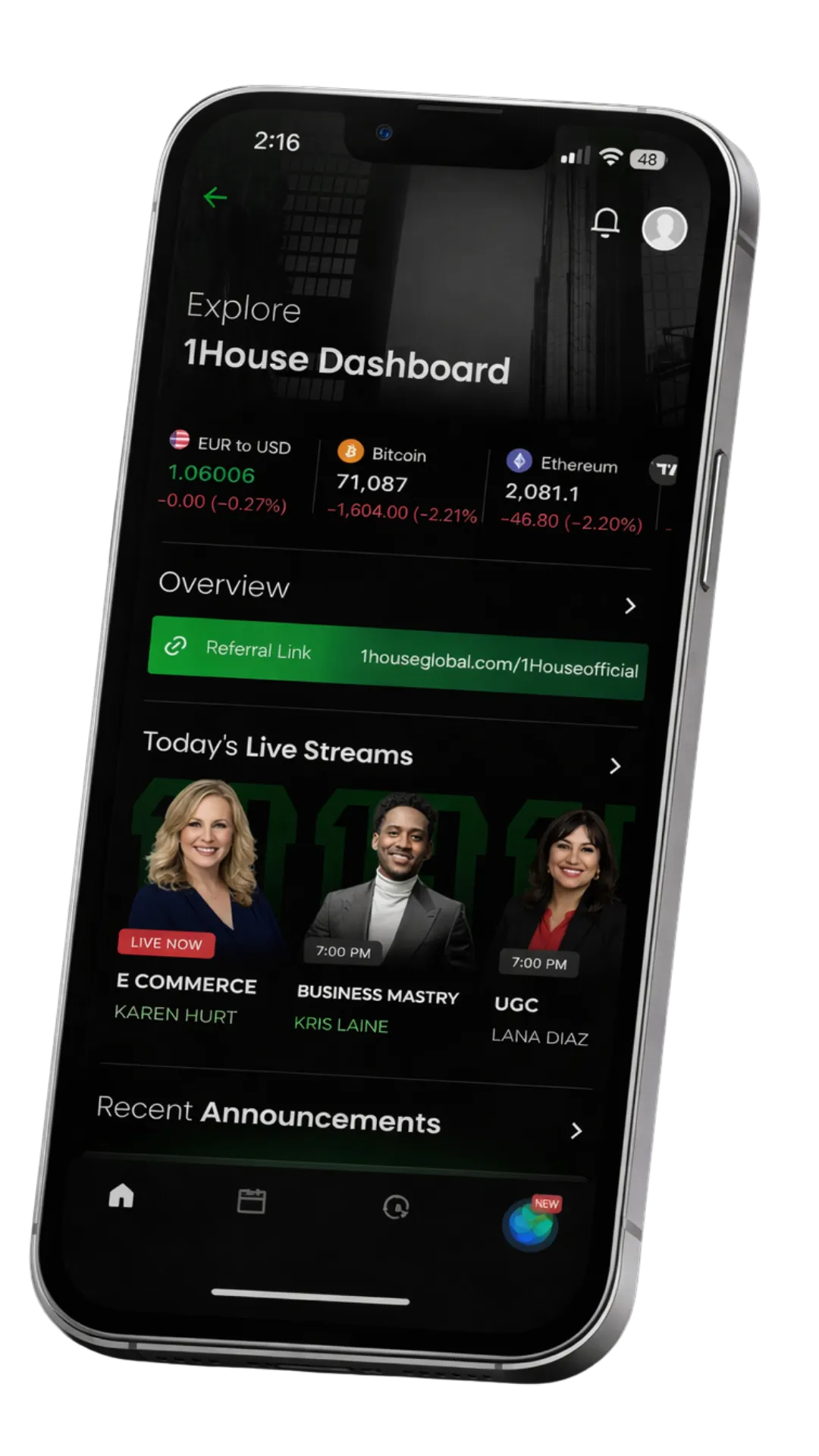
Get notified when your favorite creators go live, jump into exclusive trainings, and stay connected to the community wherever you are.
Live stream alerts
Never miss a session.
Watch from anywhere
Classes and replays on mobile.
Inner circle access
Private creator channels.
Stay connected
Follow creators and updates.
Join your SafeHouse sessions from your phone — download the app from the App Store for iPhone or Google Play for Android.


Every vertical, every creator, every replay — under a single subscription.
Free
Watch 1HouseTV streams with ads
$49.99/mo
Everything you need to host, engage, monetize, and grow your audience.
$99.99/mo
Stream and learn the digital economy across multiple niches
$199.99one-time, then $165/mo
Everything 1House offers
| Feature | Dashboard - Free | SafeHouse - $49.99/mo | Digital Stream All-Access - $99.99/mo | 1House "Everything" - $165/mo |
|---|---|---|---|---|
| Watch 1HouseTV streams | With ads | |||
| Past stream recordings | ||||
| On-demand education videos | ||||
| Mobile app access | ||||
| SafeHouse | ||||
| AI market analysis tools |
means the feature is not included in that plan. "With ads" means streams play with short ad breaks on the free plan.
SafeHouse — $49.99/mo
SafeHouse turns 1House.tv into your own stage: run interactive meetings and webinars for up to 500 participants, control access with quizzes, gifts, or tokens, and track everything with built-in analytics. Creators schedule and manage their SafeHouse events directly from their 1House.tv dashboard — once your SafeHouse subscription is active, event hosting tools unlock automatically in your account.
No live SafeHouse events are scheduled yet. When creators begin hosting, upcoming SafeHouse sessions will be announced here and inside the 1House.tv app.